PayPal Business Account

 Setting up a Business PayPal account for website payments
A PayPal Business account allows your website to accept secure online payments by PayPal, debit card and credit card. Customers may be able to pay by card without opening a PayPal account, provided that guest card payments are available for your account and checkout.
1. Create your PayPal Business account
Go to PayPal Business and select the option to open a Business account.
Use an email address which you check regularly. PayPal will use this address for account notices, security messages and payment notifications. We heavily recommend using an email account in the name of your business and website. Mike can help!
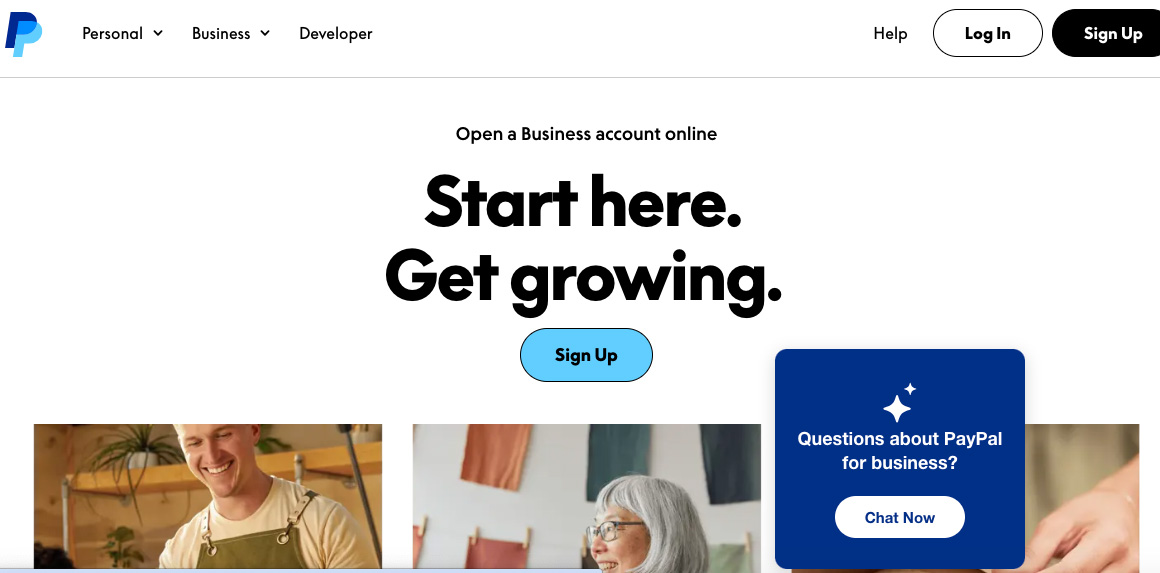
2. Enter your business details
Complete the information requested by PayPal. This may include your legal name, business or trading name, business address, telephone number, business type, business registration details, a description of what you sell and your website address.
Make sure that the information matches your official records. Differences in names or addresses can delay verification.
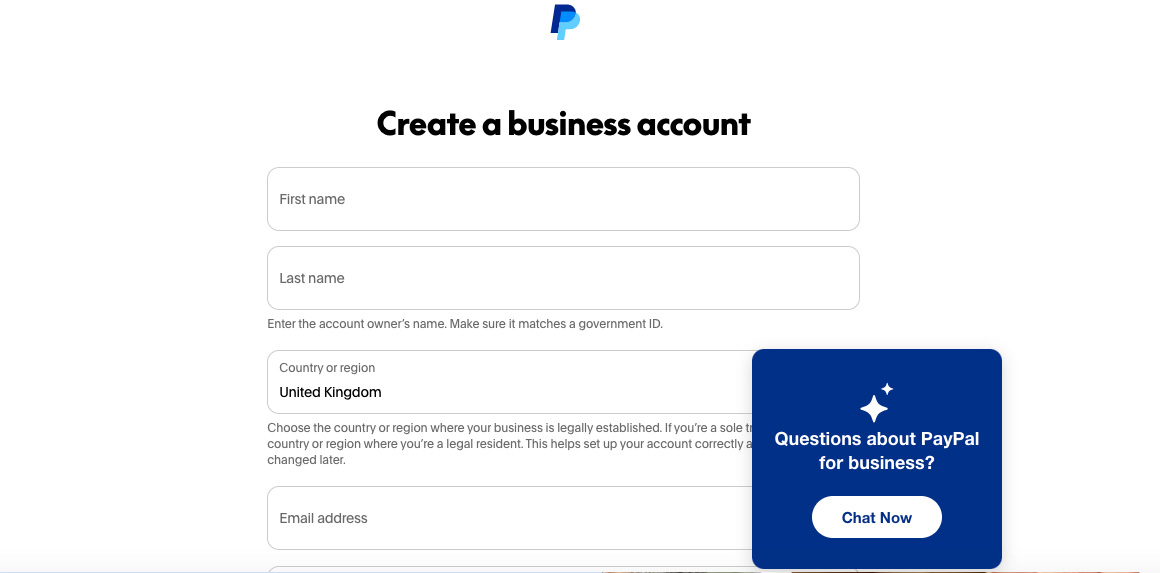
3. Confirm your email address
PayPal will send a confirmation message to the email address used when the account was created. Open the message, select the confirmation link and sign in to PayPal if requested.
Do not follow links in unexpected PayPal messages. You can always open PayPal directly in your browser and check the notifications shown inside your account.
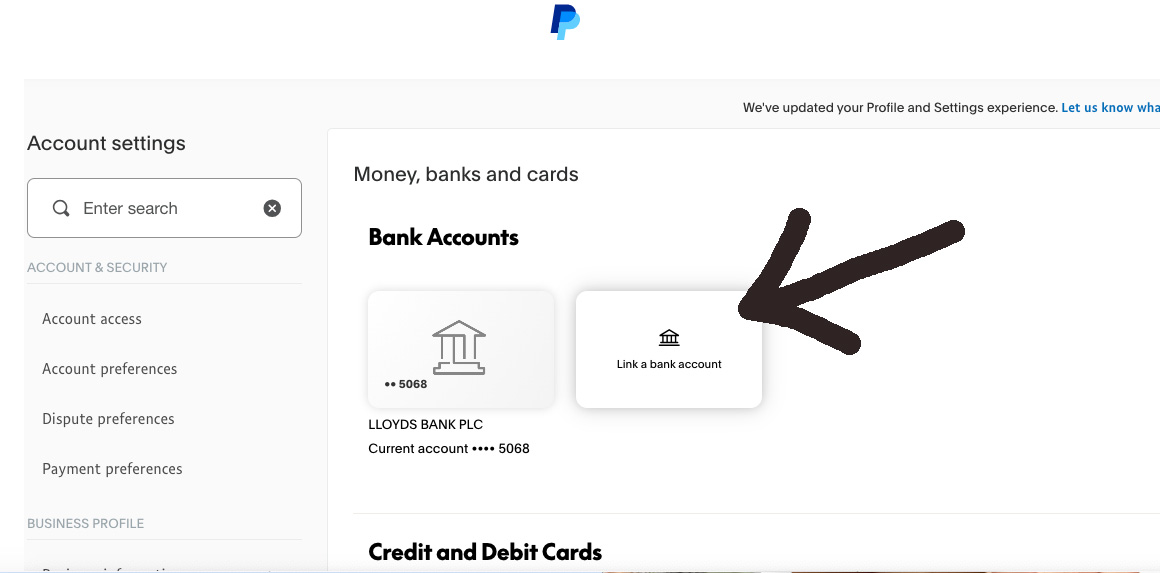
4. Link and confirm your business bank account
After signing in, open Account Settings and then section for your Money, banks or cards and choose the option to link a bank account. Enter the bank details requested by PayPal. This link should take you straight to Add a Bank
PayPal may offer instant confirmation. If manual confirmation is required, PayPal may send a small deposit containing a verification code which you enter back into your PayPal account.
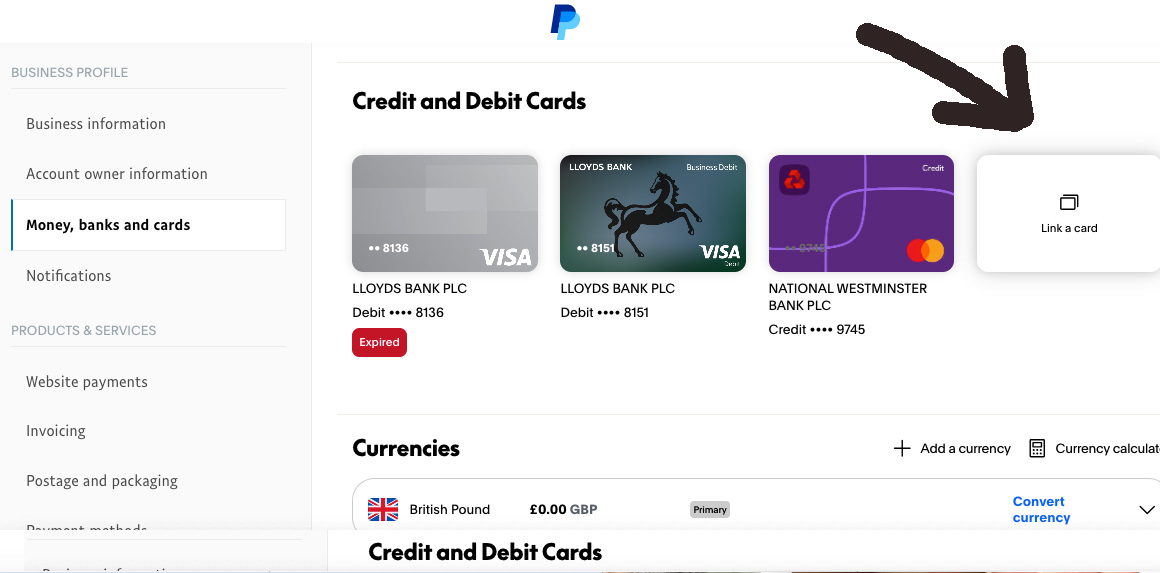
5. Add a debit or credit card
You can also add a business debit or credit card. Open the banks and cards section, select the option to link a card and enter the card details.
Adding and confirming a bank account or card helps PayPal verify the account and gives you a way to fund payments or cover refunds when necessary.
6. Complete PayPal's identity and business checks
Most businesses can start using their account immediately. Occasionally PayPal will ask for additional information before allowing certain features or larger payment volumes. If this happens, you'll see a notification at the top of your PayPal Dashboard or receive an email directing you to the Resolution Centre, where you'll be guided through the required steps.
7. Check your business profile
Open your account settings and check the business information shown to customers. Confirm the business name, customer service email address, telephone number and website address.
Use a recognisable trading name so customers can identify the payment on their receipt or card statement.
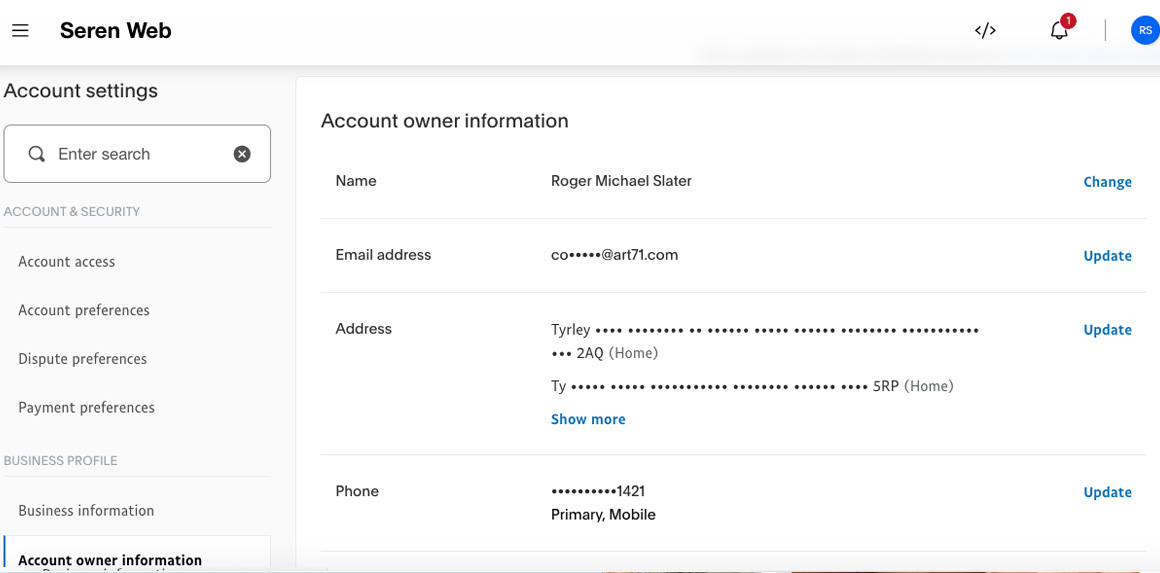
8. Allow customers to pay without a PayPal account
Your website will be connected to PayPal using PayPal Checkout. Customers select the PayPal payment button and PayPal then displays the payment methods available to them.
Depending on the customer, their location, device and PayPal's eligibility checks, they may be able to pay using:
- Their PayPal account
- A debit or credit card
- PayPal Pay Later, where available
Customers may sometimes be able to pay by card without opening a PayPal account. PayPal decides when this option is available, so it may not appear for every customer or every transaction.
You do not need to change the Website Preferences setting for this integration. Seren Web will create and configure the PayPal checkout button using the details connected to your PayPal Business account.
9. Send your PayPal details to Mike at Seren Web
You're ready!
Once you've created your PayPal Business account and can successfully sign in, simply email me your PayPal account email address. I'll then connect your website to PayPal and carry out a complete test payment before your site goes live.
10. Test the website payment process
Before the website checkout is made live, we place a small test order and check that:
✓ The customer can reach the PayPal checkout securely.
✓ PayPal and card payment choices appear as expected.
✓ The payment is recorded in the PayPal account.
✓ The website records the order correctly.
✓ The business and customer receive the correct confirmation emails.
✓ Any delivery charge, tax and order total are correct.
Frequently asked questions
Do customers need a PayPal account?
No. Eligible customers can pay by debit or credit card through guest checkout when it is available for the account and transaction.
Can PayPal accept card payments?
Yes. PayPal Business offers online payment solutions which can accept PayPal and eligible debit or credit card payments.
How do I transfer money to my bank?
Sign in to PayPal, open your balance or finance section and choose the option to transfer or withdraw money to your confirmed bank account.
Does PayPal charge fees?
PayPal normally charges transaction fees when a business receives payments. Check the current PayPal Business fees before accepting live payments, as rates and conditions can change.
Can I issue a refund?
Yes. Open the relevant transaction in your PayPal activity and use the refund option. Check the amount carefully before confirming it.
Can I create a payment link instead of a full website checkout?
Yes. PayPal also provides payment links which can be shared by email or message, added to a website or converted into a QR code.
Important: PayPal changes its dashboard and menu wording from time to time. If a screen looks different from these examples, look for the closest equivalent under Account Settings, Business information, Website payments, Wallet, Finance or Banks and Cards.
 SalesChannel.uk
 SerenWeb.com
 MikeSlater.co.uk
 *MySeren.com
 MyClientBox.com
 WebBookings.uk


 UK tel
 SMS/text/msg
 *Seren Web